
A friend asked me to help sort a Word document out today. It had a few issues, the original author had manually created a Table of Figures, and also a Table of Tables. There were some formatting issues with the document, but the biggest issue was the Table of Contents.
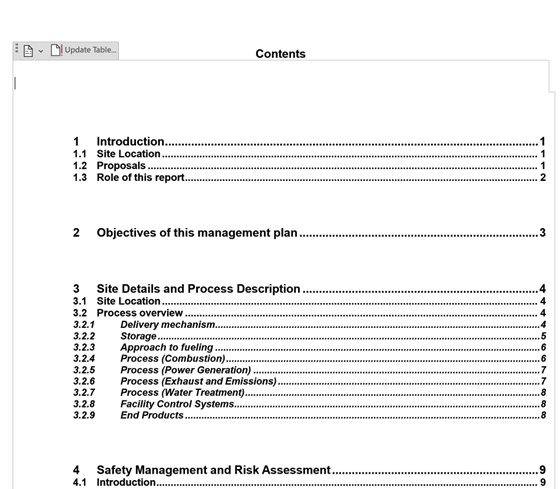
As you can see, the Table of Contents had slightly odd spacing. Here’s how I fixed this.
Step 1: Select the Styles sub-menu
Select the Styles sub-menu from the main ribbon. It will throw up a dialog box, along the lines of the one shown here.
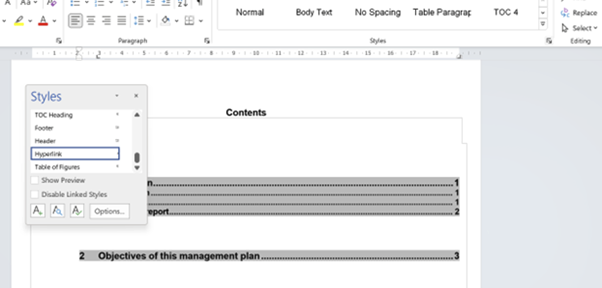
Scroll to find the ‘TOC1’ (that’s the style used for the top-level Table of Contents items)
Step 2 Run up the Modify sub-menu
Scroll to the TOC1 style. in the Styles Gallery dialog, to the right of the style there will be a drop-down arrow. If you select this, the gallery sub-menu will display.
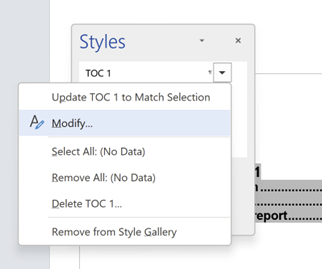
Select ‘Modify’
Step 3 The Modify Style Dialog
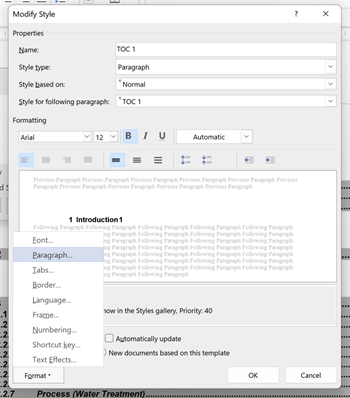
From the dialog displayed, select the ‘Format’ button at the bottom of the dialog, and this will display a select list. We want the ‘Paragraph’ option.
Step 4 The Paragraph Dialog
You’ll get a paragraph dialog showing the attributes currently associated with paragraphs. Here’s what this looked like in the word document.
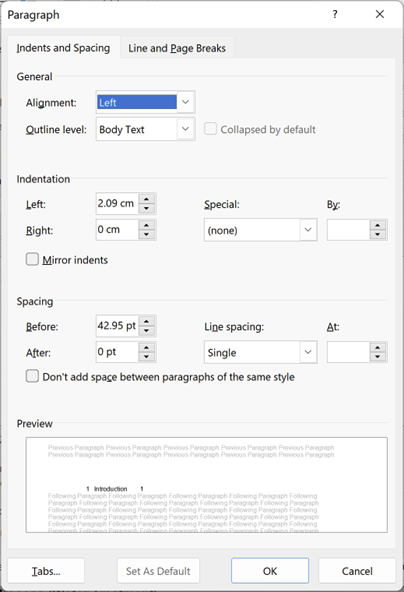
The databox for ‘Spacing’, specifically the ‘Before’ setting is the problem. Here it is adding 42.95pt spacing before each TOC1 item – remember the odd spaces in the Table of Contents?
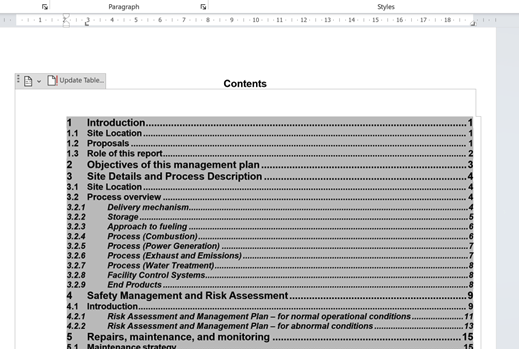
Change the value to 0pt, and voila! This is what happened to my Table of Contents.
 Full Metal Aardvark